

 Cart is empty
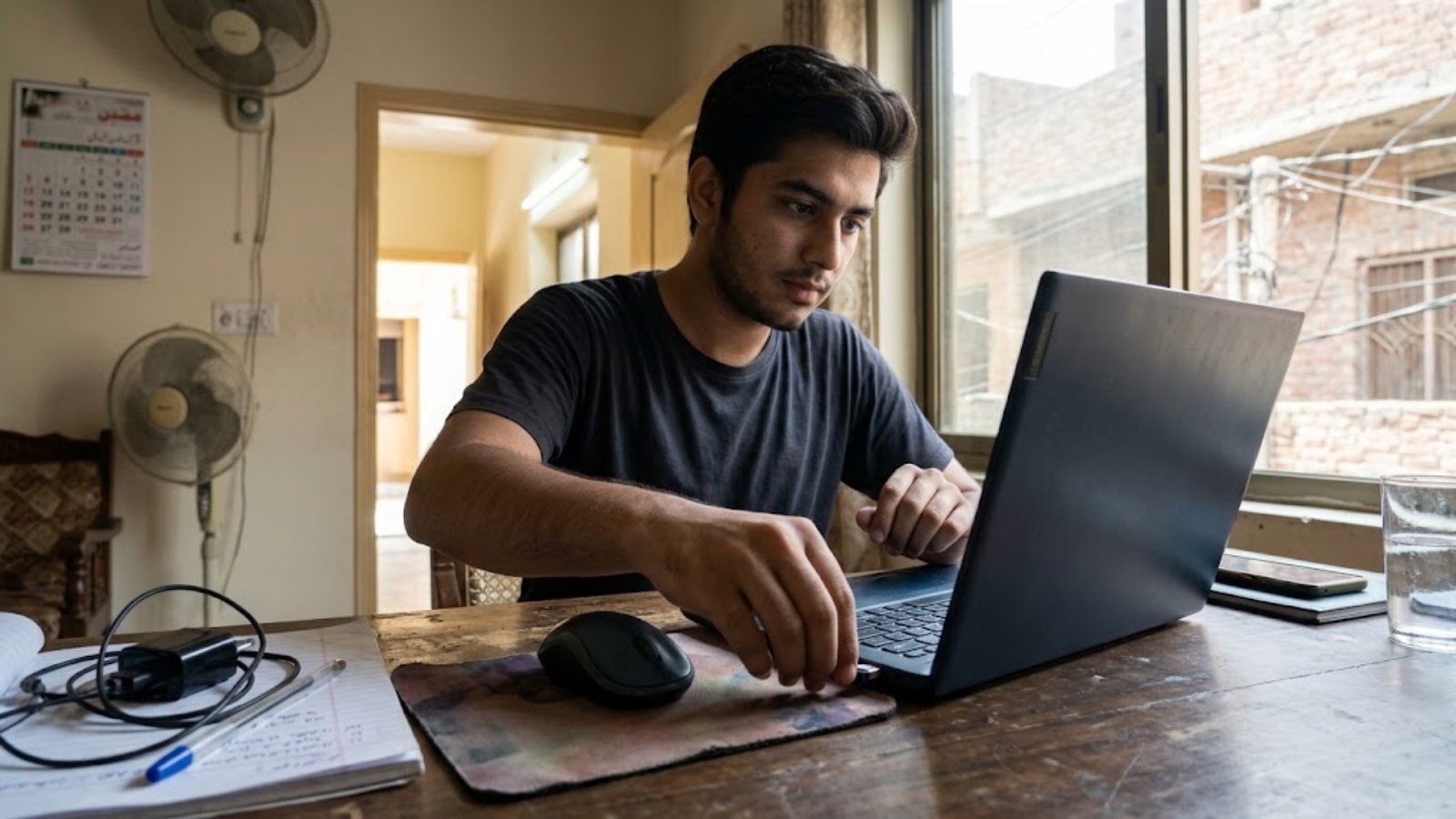
If your laptop is not detecting a USB receiver, test the receiver in every port, test the port with another device, then restart. If that fails, reinstall the device in Device Manager and turn off USB power saving. Most receiver problems are fixed by one of these, and all of them are free.
Is It the Receiver, the Port or Windows?
Spend two minutes on this test before anything else.
- Plug the receiver into each USB port on the laptop, one at a time.
- Plug a flash drive or phone cable into the port that failed.
- If you can, try the receiver on another computer.
| What you see | Most likely cause |
|---|---|
| Receiver works on another computer, not on yours | Your laptop’s port or Windows |
| Receiver fails on every computer | The receiver or mouse |
| One port fails with every device | A dead or dirty port |
| Every port fails | A Windows or driver problem |
| Works after restart, fails after sleep | USB power saving |
The last row is the one most guides skip. Puget Systems explains that USB selective suspend can make ports disconnect or devices fail to wake after sleep, so Windows shows them as unrecognized. A restart usually brings them back.
Check 1: Restart Properly and Reconnect
Unplug the receiver and wait about 10 seconds. Restart Windows from the Start menu, not Shut down. Plug the receiver back in after you sign in. HelpDeskGeek lists this as the first fix.
Check 2: Plug It Directly Into the Laptop
Remove any hub, dock or extension. Logitech and Microsoft both say a receiver should be plugged directly into the computer. A cheap hub often can’t power it properly.
Check 3: Try Every Port, and Look Inside Them
Test each port. Switch the laptop off, then look into the port with a torch. Dust, lint and bent pins are common on older laptops.
A loose port can also cause trouble. If the receiver only works when you hold it at an angle, the port is worn.
Check 4: Install Windows Updates
Open Windows Update and install everything available. HelpDeskGeek suggests only installing optional driver updates that match your hardware. Restart afterward.
Check 5: Reinstall the Device in Device Manager
Press Windows + X and open Device Manager. Expand Universal Serial Bus controllers and Mice and other pointing devices. Look for a yellow warning icon or an unknown device.
Right-click it and choose Update driver. If that fails, choose Uninstall, then restart. Windows reinstalls it automatically.
Check 6: Turn Off USB Power Saving
This fixes the “works, then stops” problem. There are two parts.
Part A: Power Options
- Search for “Edit power plan” in the Start menu and open it.
- Click Change advanced power settings.
- Expand USB settings and set USB selective suspend to Disabled. On a laptop, set both the battery and plugged-in options.
Part B: Device Manager
- Expand Universal Serial Bus controllers.
- Right-click USB Root Hub and choose Properties.
- On the Power Management tab, clear “Allow the computer to turn off this device to save power.”
Logitech notes that Windows may reverse the Device Manager change after a restart or when the device is unplugged. That’s why you should do both parts. It may slightly increase power use.
Check 7: Install the Maker’s Chipset or USB Driver
If several ports fail, the chipset driver may be missing or outdated. Find your laptop’s exact model, download the chipset or USB driver from the official support site, and install it. Restart.
Check 8: Reinstall the USB Controllers (Last Resort)
Do this only if several ports fail. In Device Manager, uninstall the USB controller entries and restart so Windows reinstalls them.
Warning: if your wireless mouse is your only mouse, USB input may stop until Windows reloads the drivers. HelpDeskGeek advises having a Bluetooth keyboard or mouse ready. Learn the keyboard shortcuts first, or use the laptop’s trackpad.
When to See a Repair Shop
Stop troubleshooting if:
- every port fails and nothing above helps
- a port is loose or physically damaged
- the laptop smells burnt or a port gets hot
Ask for a quote. Port repair prices vary by laptop and shop, so I haven’t listed a number.
What to Buy While You Wait
You may not want to be without a mouse. These stopgaps cost little.
| Stopgap | Price (PKR) |
|---|---|
| Wired mouse (A4Tech OP-620D) | about 1,100-1,200 |
| Basic wireless mouse | about 900-1,500 |
| USB 3.0 4-port hub | about 1,600 |
A wired mouse needs no receiver, so it works as long as one USB port works. See our wired vs wireless mouse guide. A hub helps if you’ve run out of ports, but plug the receiver directly into the laptop, not into the hub.
My Honest Take
Most receiver problems aren’t the receiver. Do the two-minute port test first. It tells you where to look.
If the receiver works on another computer, don’t blame the mouse. Spend ten minutes on Check 6, because power saving causes more “it stops after a while” faults than people expect.
Frequently Asked Questions
Why is my laptop not detecting my USB receiver? Common causes are a dirty or loose port, a driver problem, a USB power-saving setting, or a faulty receiver. Test the receiver on another computer to tell them apart.
Why does my wireless mouse stop working after sleep? USB selective suspend can switch off a port to save power and fail to wake it. Disable it in Power Options and in the USB Root Hub’s power settings.
Can a USB hub stop a receiver from working? Yes. Logitech and Microsoft both say to plug a receiver directly into the computer, not through a hub.
Is it safe to reinstall USB controllers? Yes, but your USB mouse and keyboard may stop working briefly. Keep the trackpad or a Bluetooth device available.
How do I know if my laptop’s USB port is dead? Try a flash drive or phone cable in it. If nothing works in that port, but other ports work, the port is faulty.
Do I need a new mouse if the receiver won’t work on any computer? Often yes. Many receivers are paired to one mouse. A basic replacement costs about PKR 900-1,500.
Still stuck? Send us your laptop model and what you see on WhatsApp, and we’ll tell you whether it’s a setting or a port issue.



Leave A Comment