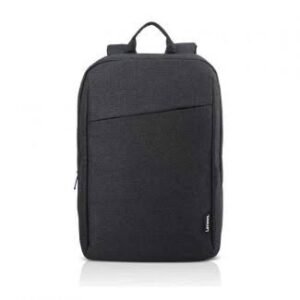

Comparing laptop bag price in Pakistan between a backpack, shoulder bag and sleeve

Laptop Bag Price in Pakistan: What PKR 1,000, 3,000 and 5,000 Buy

Laptop bag price in Pakistan starts at about PKR 850 for a basic padded bag. A padded backpack costs PKR 2,700-3,100, and Dell or Targus bags cost PKR 4,800 or more. For daily use, PKR 2,700-3,100 is the sweet spot. Pay more only for brand or comfort.

What Does a Laptop Bag Cost in Pakistan?

Here is the range from the lists we checked in November 2026. Prices change as stock sells, so treat them as a guide.

TypeTypical price (PKR)
Basic padded bag (our listing)850
Neoprene sleeve1,599
Shoulder or messenger bag2,599-3,199
Branded backpack (Lenovo, Cool Bell)2,700-3,700
Dell or Targus backpack or briefcaseabout 4,800
Gaming backpack6,400-10,100
Premium leather bag10,600-12,700

Most of these come from one live stock list, NN Laptops, which says prices change as items sell. The first row is our own listing. Ask the seller to confirm before you order.

What Does PKR 1,000 Buy?

Very little from big brands, but enough for a basic bag. In the lists we checked, the cheapest sleeves were PKR 1,599. Our own Budget 15.6 Inch Laptop Bag is PKR 850.

At this price you get:

  • A padded laptop compartment for up to 15.6 inches.
  • Water-resistant fabric, so a light drizzle won’t soak through.
  • An adjustable shoulder strap and a front pocket for a charger.

What you give up is organisation, a recognised brand and, I’d expect, long-term stitching strength. For a short commute and a light load, that’s a fair trade. If you carry heavy books every day, step up a tier.

What Does PKR 3,000 Buy?

This is where the choice widens. For about PKR 2,600-3,300 you can find:

  • A branded shoulder bag. NN Laptops lists a Targus Classic 15.6 inch bag at PKR 2,599.
  • A messenger bag or briefcase. Prices are about PKR 3,199, and the HP briefcase on the same list fits up to 14 inches only.
  • A padded backpack. Our Cool Bell CB-2100 is PKR 2,700. It has a padded 15.6 inch compartment, a second section for books and chargers, and reinforced straps.
  • A genuine Lenovo B210. Ours is PKR 3,100. It has a padded sleeve, a water-resistant shell and padded straps.

This is the tier I’d tell most people to buy from. A backpack spreads the weight over both shoulders, which matters when you carry books and a charger. Our backpack vs sleeve guide explains why.

What Does PKR 5,000 Buy?

Not much more protection. It mostly buys a bigger brand name.

In the same list, a Dell Pro backpack and a Targus Classic briefcase are both PKR 4,799. After that the jump is steep. An Asus gaming backpack is PKR 6,399. A Targus CityGear is PKR 7,399. A Dell EcoLoop is PKR 8,499.

So who should spend PKR 4,800 or more? People who need a briefcase look for the office, or a gaming laptop that is bigger than 15.6 inches. If that’s not you, the extra PKR 2,000 doesn’t buy much extra protection.

What Does a Premium Bag Actually Add?

To see what you’re not paying for, look at the top. Tejar lists the Targus 15.6 inch Urban Commuter at PKR 21,399. For that you get:

  • 23 litres of space.
  • Airflow back padding and a sternum strap.
  • Reflective dots and a bike light loop.
  • A 3-year manufacturer warranty.

These are real benefits for a daily cyclist or a heavy traveller. For a student on a bus, they are mostly extras.

The Same Bag Costs Different Amounts

Take the Lenovo B210. Here are the prices we found:

SellerPrice (PKR)
Our listing3,100
Laptab3,331
NN Laptops3,699

That’s a gap of nearly PKR 600 for the same model. Delivery, warranty and stock condition can differ too. Laptab’s page, for instance, shows only a “3 Days Check Warranty” badge.

So compare the full cost, not just the number. Ask three things: is delivery free, is the bag genuine, and what is the return policy?

How to Choose Your Budget

  • Under PKR 1,000, light load, short commute → Basic padded bag. Check the strap and zips.
  • Daily student or office use → PKR 2,700-3,100 padded backpack.
  • Want a recognised brand → Lenovo B210 at about PKR 3,100.
  • Office look, laptop 14 inch or smaller → A briefcase or shoulder bag, PKR 2,600-3,700.
  • Gaming laptop above 15.6 inches → Gaming backpack, PKR 6,400 or more.
  • Not sure of your laptop size → Check our bag size guide first. Many returns happen because the bag is too small.

For a full list of what to check at this price, see our budget laptop bag guide.

My Honest Take

Don’t pay for a brand you won’t feel. A padded backpack at PKR 2,700-3,100 protects a laptop as well as most bags double that price.

Spend more only if you’ll use what you pay for. That could be a better back panel for long walks, a larger bag for a bigger laptop, or a warranty you’ll actually claim. Otherwise, spend the money on a good mouse or charger.

Frequently Asked Questions

What is the average laptop bag price in Pakistan? A basic padded bag starts at about PKR 850. Most branded backpacks cost PKR 2,700-3,700, and Dell or Targus bags cost about PKR 4,800 or more.

What is a good laptop bag price for students? PKR 2,700-3,100 is a good range. It gets you a padded backpack with room for books and a charger.

Is a PKR 1,000 laptop bag good enough? For a light load and a short commute, yes. It protects against light bumps and drizzle, but expect fewer pockets and less durable stitching.

Why do laptop bag prices differ between sellers? Stock, delivery, brand authenticity and warranty all vary. We found the same Lenovo B210 listed from PKR 3,100 to PKR 3,699.

Is an expensive laptop bag worth it? Only if you use the extras, such as a better back panel, more space or a long warranty. For daily study or office use, a PKR 3,000 backpack is usually enough.

Which laptop bag size should I buy? Match it to your screen size. Check our laptop bag size guide before you order.


Not sure which bag fits your laptop? Send your laptop model on WhatsApp and we’ll point you to the right one.

Student checking a laptop battery draining fast with a low battery warning on screen

Laptop Battery Draining Fast: 7 Checks Before You Replace It

If your laptop battery is draining fast, check Battery usage, lower brightness and close startup apps. Then run the Windows battery report. If full charge capacity is far below design capacity, the battery is worn and needs replacing. If not, it’s a software fix.

Which Kind of Drain Do You Have?

  • It drains quickly while I’m using it → Checks 1 to 4.
  • It loses a lot overnight, even with the lid closed → Check 5.
  • It stops charging early, or sits at 60-80% → Check 6.
  • It shuts down suddenly at 15-25% → Check 7. The battery is likely worn.

Check 7 is the one that decides everything. Do it early if you’re short on time.

Check 1: See What’s Using the Power

Go to Settings > System > Power & battery > Battery usage. Change the dropdown to Last 7 days. HelpDeskGeek says to start here to find which apps use the most power.

Close or uninstall anything you don’t need. Open Task Manager (Ctrl + Shift + Esc), go to Processes and sort by Power usage. Browser tabs that auto-refresh video or live pages can drain a lot, so close those too.

Check 2: Lower the Brightness and Power Mode

The screen is usually the biggest drain. Turn the brightness down a few notches. In Settings > System > Power & battery, set Power mode to Balanced or Best power efficiency.

Also shorten the screen-off and sleep timers for “On battery power.”

Check 3: Stop Startup Apps

Go to Settings > Apps > Startup and turn off anything you don’t need at login. Chat apps, cloud sync and update helpers often run all day.

For an app you still need, open Settings > Apps > Installed apps, choose Advanced options, and set Background app permissions to Power optimized or Never.

Check 4: Turn On Energy Saver

In recent Windows 11 builds, Energy saver (once called Battery Saver) lives under Settings > System > Power & battery. Turn it on and set a start level. HelpDeskGeek suggests somewhere between 30% and 50%.

If you can’t find it, your Windows build may use the older name.

Check 5: Overnight Drain

If the battery loses a lot while the laptop sleeps, it’s usually a driver problem. HelpDeskGeek says a loss of about 1-3% overnight is normal, and more than 10-15% points to a fault.

Update the chipset, graphics and Wi-Fi drivers from your laptop maker’s support site, and the BIOS if there’s an update. Then install pending Windows updates. Some users reported worse battery life after certain updates, so a newer one may fix it.

For a stubborn case, Dell suggests a clean boot. Disable non-Microsoft startup items, restart and compare. If runtime improves, re-enable items in groups to find the culprit. If it doesn’t improve, the battery itself may be worn.

Check 6: Check Your Charge Limit Setting

Some laptops have a battery care mode that stops charging at 60-80% to protect the battery. It’s meant to help, but it looks like a short runtime.

Dell’s guide points out a BIOS setting under Power Management. The Custom and Primarily AC Use charge modes can stop charging early. Setting it to Standard is a useful test. Other brands have a similar option in their own app, often called battery care or conservation mode.

Check 7: Run the Battery Report

This test takes two minutes and tells you the truth.

  1. Press Windows + R, type cmd and press Enter.
  2. Type powercfg /batteryreport and press Enter.
  3. Open the file battery-report.html from your user folder (C:\Users\YourName\) in a browser.

Find two numbers, as Dell explains:

  • Design Capacity: what the battery could hold when it was new.
  • Full Charge Capacity: what it can hold now.

Divide the second by the first. That’s your battery health.

HealthWhat it means
Above 80%Healthy. The problem is probably software
60-80%Wearing. Replace soon if runtime bothers you
40-60%Worn. Replacement is worth it
Below 40%Dell says replace it

Sources use different cut-offs. NN Laptops suggests replacing soon below 80%, while Dell says the battery is significantly degraded below 40%. Use the table as a guide, and let your daily runtime decide.

Safety Check: Is the Battery Swollen?

Stop here if you see any of these. The base is bulging, the touchpad is lifting, or the laptop no longer sits flat on a table. A swollen battery can be a fire hazard. Stop using the laptop, don’t charge it, and have it checked straight away. Our touchpad guide covers the same warning sign.

What a Replacement Costs in Pakistan

NN Laptops lists these prices, parts and labour included. They’re from one vendor and aren’t independently verified. Ask for a quote.

LaptopTypical price (PKR)
Dell Inspiron 15 / HP Pavilion 153,500-4,800
HP EliteBook 8403,800-5,500
Dell Latitude 7-series4,000-6,000
Lenovo ThinkPad T-series4,000-6,500
Gaming laptops (Asus TUF, Acer Nitro, MSI)4,500-7,500

The same vendor says to avoid unbranded cells with unverified capacity ratings. It also suggests replacing is usually worth it if the battery costs under about 15% of the laptop’s value.

Which Fix Fits You?

  • Battery health above 80% → Do Checks 1 to 5. It’s software.
  • Health 60-80% and you rarely unplug → Live with it. Replacing won’t change much.
  • Health below 60% and you unplug daily → Replace it.
  • Old laptop worth under PKR 25,000 → Think twice. A battery at PKR 4,000+ is a big share of its value.
  • Laptop stays plugged in all day → Keep the battery in, but a charger and desk setup matter more.
  • Bulging, lifting touchpad → Stop using it.

Heat also shortens battery life. If your laptop runs hot, our cooling pad guide explains when a pad helps.

Is It Really the Battery? Check the Charger First

If the battery won’t charge at all, or charges only when you hold the cable at an angle, the charger may be the fault. Our laptop charger not charging guide lists five free checks. A worn cable fails more often than people think, as our charger lifespan guide explains.

My Honest Take

Run the battery report before you buy anything. It’s free, and it saves you from spending on the wrong part.

If health is above 70% and it still drains fast, I’d suspect a driver, a startup app or brightness. If it’s below 50%, I’d replace it, but only if the laptop is worth it.

Frequently Asked Questions

Why is my laptop battery draining so fast? Common causes are high screen brightness, background apps, a driver or Windows update problem, or a worn battery. Check Battery usage in Settings, then run the battery report.

How do I check my laptop battery health? Open Command Prompt and run powercfg /batteryreport. Open the file it creates and compare Design Capacity with Full Charge Capacity.

How much overnight battery drain is normal? About 1-3% overnight is normal, according to HelpDeskGeek. Losing more than 10-15% points to a driver or settings problem.

When should I replace my laptop battery? When full charge capacity falls well below design capacity and your runtime no longer suits you. Dell says below 40% is significantly degraded. Many shops suggest replacing soon below 80%.

How much does a laptop battery replacement cost in Pakistan? One Pakistani vendor lists roughly PKR 3,500-7,500 for common laptops. Prices vary by model, so ask for a quote.

Is a swollen laptop battery dangerous? Yes. Stop using the laptop, don’t charge it, and have it checked immediately.


Not sure if it’s the battery or the charger? Send us your laptop model and your battery report numbers on WhatsApp, and we’ll point you the right way.

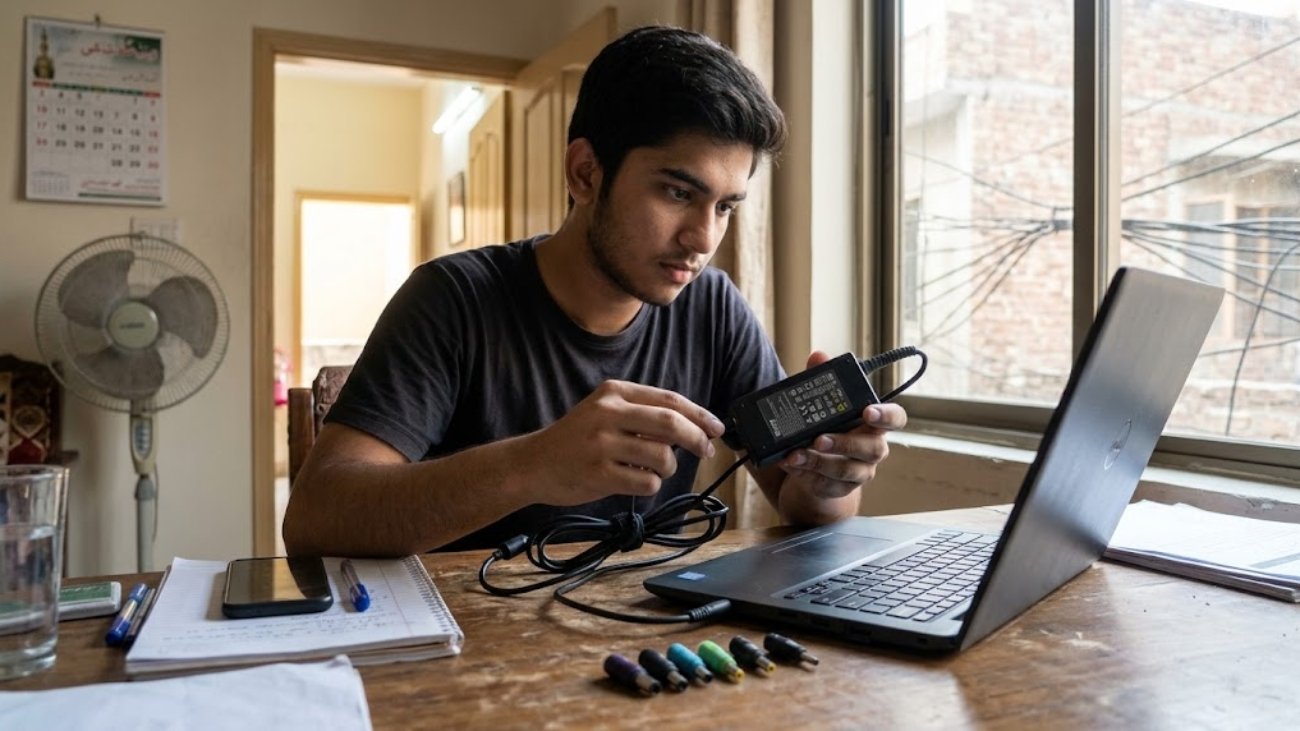
Checking the voltage on a universal laptop charger before plugging it into a laptop

Universal Laptop Charger in Pakistan: Is It Safe? Voltage and Tips Explained

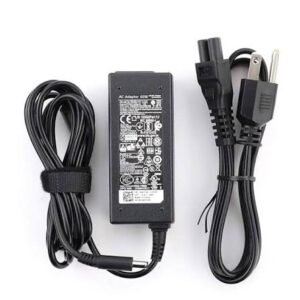
A universal laptop charger can be safe. But the voltage, tip and polarity must all match your laptop. Check the label on your old charger first. Never guess the voltage. A fixed-voltage charger that matches your laptop is the safest and cheapest choice.

What Does “Universal” Actually Mean?

The word is a sales label, not a standard. Three very different products use it.

TypeHow it worksRisk
Switchable-voltage with tipsYou pick a voltage and a tipHighest. A wrong setting can damage the laptop
Fixed-voltage with tipsOne voltage, many tipsMedium. Safe only if that voltage matches yours
USB-C Power DeliveryThe laptop and charger agree on the powerLowest, if the charger is certified

Evetech’s guide puts it simply. Universal chargers can be safe when they match the laptop and carry protections and recognised certifications. They aren’t safe by default.

Is a Universal Laptop Charger Safe for Your Laptop?

It’s safe when three things match. If any one is wrong, don’t plug it in.

  1. Voltage. The output must equal the voltage on your original charger. Not close. The same.
  2. Polarity. The centre pin of the plug must be positive or negative, the same way as your original.
  3. Tip fit. The tip must sit firmly in the port, with no wobble.

Evetech’s safety guide warns that the wrong adapter risks overheating, unstable voltage and battery damage. It also says to match the output voltage exactly and confirm that polarity matches the jack.

Wattage is the forgiving one. If you want the full explanation, our higher wattage charger guide covers it. In short, a higher wattage is fine and a lower wattage is the problem. Voltage is the number that must match exactly.

The 60-Second Check Before You Plug In

Do this every time, even with a charger you’ve used before.

  1. Read the label on your old charger. Find the output line, such as 19V ⎓ 3.42A. Write it down.
  2. Read the new charger. Its output voltage must be the same. If it has a switch, set it, then read it twice.
  3. Check polarity. The label on a tip set usually shows the centre pin sign. Match it to your original.
  4. Fit the tip. It should click in or sit tight. A loose tip heats up and sparks.
  5. Plug in and watch for 10 minutes. The charger should get warm, not hot. Evetech says to stop using a charger that runs unusually hot, smells strange or keeps disconnecting.

If you don’t have your old charger, look at the label on the laptop itself, usually on the underside. It lists the input voltage and amps.

The Mistake That Does the Most Damage

Choosing the voltage from memory.

A few brands use 19V, others 19.5V, and some use 18.5V or 20V. They look nearly the same. They are not. A small difference may be tolerated by some laptops, but you can’t know which ones. If a charger already isn’t working, run the free checks in our charger not charging guide first.

So read the label. Every time. If you can’t read the label, don’t buy.

What a Universal Charger Costs in Pakistan

Prices vary a lot by type. These ranges are from published Pakistani seller lists in October and November 2026. Treat them as a guide and ask for a quote.

Charger typeTypical price (PKR)
Fixed compatible 65W (barrel)1,800-2,500
Genuine 65W (barrel)3,500-5,000
Universal 65W with 16 tips (one seller)about 2,600
65W USB-C, compatible2,000-3,200
Our Universal 65W Laptop Charger1,500

The first two rows and the USB-C row come from one Pakistani seller’s list, which isn’t verified. The 16-tip price is from NN Laptops, which also says it uses automatic voltage regulation but lists no safety certifications.

A cheap price isn’t a sign of danger on its own. But a charger with no printed voltage, no brand and no return policy is. Evetech’s advice is to put safety and warranty ahead of the lowest price.

[INSERT: is the techbits.online Universal 65W charger a fixed-voltage charger with a pin chosen for HP/Dell/Acer, or a multi-tip/switchable one? Add the exact output (for example 19V 3.42A) and the tip count]

Who Should Buy One, and Who Shouldn’t

  • You lost your original and need the same voltage back → A fixed-voltage charger that matches your label is the safest choice.
  • You have an HP, Dell or Acer laptop with a common plug → A universal 65W with the right tip is a fair budget fix.
  • You have a USB-C laptop → Buy a certified USB-C Power Delivery charger instead. It negotiates the power itself.
  • You own several different laptops → A switchable charger works. Check the voltage every single time.
  • You have a gaming laptop or workstation → Use the original. These often need 90W or more, and a low-wattage adapter limits performance.
  • You can’t read the old label → Don’t guess. Ask a technician or send us a photo.

Protect the Charger as Well as the Laptop

A good charger can still fail early. Evetech’s checklist suggests inspecting the cable and plug for fraying, kinks or melt marks. It also advises avoiding daisy-chained power boards and using a single surge-protected board when possible.

That matters where power swings and cuts are common. Replace a charger that gets hot or whose cable frays. Our charger lifespan guide lists the warning signs.

My Honest Take

I’d buy a universal charger for an HP, Dell or Acer laptop, if the voltage on its label matches mine and the seller prints the output on the box. It saves a few thousand rupees over a genuine one.

I wouldn’t buy one with no printed voltage. And I wouldn’t use a switchable one if I had to guess the setting. If you own a USB-C laptop, skip universal tips completely. See our 65W charger buying guide to compare.

Frequently Asked Questions

Is a universal laptop charger safe? It can be, if the voltage, polarity and tip all match your laptop and the charger has built-in protections. A wrong voltage can damage the laptop.

How do I know what voltage my laptop needs? Read the output line on your original charger, such as 19V and 3.42A. If it’s missing, check the label on the laptop’s underside.

Can I use a universal charger on any laptop? No. The voltage, plug and polarity must match. Gaming laptops and workstations usually need the original wattage.

Is a higher wattage universal charger okay? Usually yes, if the voltage matches. The laptop draws only what it needs. Lower wattage is the real problem.

Can a wrong tip damage my laptop? A loose or wrong tip can overheat or spark, and a wrong polarity can damage the laptop. Make sure it fits firmly and the polarity matches.

What should I do if my charger gets very hot? Unplug it. A charger that runs very hot, smells strange or keeps disconnecting should be replaced.


Not sure what your laptop needs? Send a photo of your charger’s label on WhatsApp, and we’ll tell you what matches before you spend a rupee.

Checking a laptop touchpad that is not working or jumping

Laptop Touchpad Not Working or Jumping: Quick Fixes

If your laptop touchpad is not working, press the Fn touchpad key, check Windows touchpad settings, then reinstall the driver. If the cursor jumps, clean the pad, lower the sensitivity and update the driver. Plug in a mouse to test. If the touchpad still fails, it may be a loose cable or a worn module.

Dead or Jumping?

  • Nothing happens when you swipe or tap → Part 1.
  • The cursor moves by itself, jumps while typing, or clicks randomly → Part 2.

Keep a mouse handy for both. If you don’t have one, you can use the keyboard to move around Windows while you work through the steps.

Part 1: Touchpad Not Working at All

Check 1: Restart and Don’t Touch the Pad

Save your work and restart the laptop. Dell’s guide adds a small but useful rule: don’t touch the touchpad until the computer has fully started, because it recalibrates during boot.

Check 2: Press the Fn Touchpad Key

Many laptops have a key that switches the touchpad off. It’s often F5, F6, F7 or F9, used with Fn. Look for a touchpad icon on the key. Press Fn plus that key and test again. Someone may have pressed it by accident.

Check 3: Check Windows Settings

Go to Settings > Bluetooth & devices > Touchpad. Make sure the touchpad is turned on. Also check whether it turns off when a mouse is connected, which is a setting some laptops use.

Check 4: Test With an External Mouse

Plug in a USB mouse, or a Bluetooth one. If the mouse works, your computer is fine and the problem is the touchpad or its driver.

Check 5: Reinstall the Driver

Open Device Manager (press Windows + X) and expand Mice and other pointing devices. Select your touchpad (for example Dell Touchpad or HID-compliant mouse). Dell suggests pressing Shift + F10 and choosing Uninstall device, then restarting. Windows reinstalls it automatically.

If you have Windows updates waiting, install them. Some newer laptops use a built-in Precision Touchpad driver supplied through Windows Update.

Part 2: Cursor Jumping or Clicking by Itself

Check 1: Clean the Touchpad

MakeTechEasier says oils, dust and sweat can change how the pad senses your finger, and grit in the corners can cause trouble. Power the laptop down. Wipe the pad with a dry cloth, then with a cloth lightly dampened with isopropyl alcohol (never spray liquid on the laptop). Let it dry before you switch on.

Washing your hands first also helps, as WTOP’s Data Doctors suggests.

Check 2: Lower the Sensitivity

A palm resting on the pad while you type can move the cursor. In Settings > Bluetooth & devices > Touchpad, lower the touchpad sensitivity. Dell’s guide also suggests turning off gestures that cause erratic movement, and under More touchpad settings, ticking Hide pointer while typing.

Turning off tap-to-click and using the physical button can cut accidental clicks too.

Check 3: Update or Switch the Driver

Download the latest touchpad driver for your exact model from the laptop maker’s support site. MakeTechEasier also suggests trying the Microsoft driver instead, through Device Manager > Update driver > Browse my computer > Let me pick from a list.

Check 4: Look for Software Conflicts

If the jumping started after installing an app (a remote-control or input tool, for example), uninstall it. MakeTechEasier suggests testing in Safe Mode with other devices disconnected. If the touchpad works there, something installed is causing it.

Check 5: Disconnect Everything and Retest

Dell suggests unplugging USB devices, external monitors and docks, then restarting. If the touchpad works, reconnect devices one at a time to find the culprit.

Safety Check: Is the Battery Swollen?

This one matters. If the touchpad feels stiff, doesn’t click normally or behaves erratically, WTOP’s Data Doctors suggest looking at the underside of the laptop for bulging.

If you see the case bulging or the touchpad pushed up, stop using the laptop and have it checked straight away. A swollen battery can be a fire hazard. Don’t charge it.

What Repair Costs in Pakistan

These figures come from one Pakistani repair vendor’s published list, NN Laptops. They aren’t verified, so treat them as a guide and ask for a quote.

ProblemTypical cost (PKR)
Ribbon cable reseat (mostly labour)1,000-2,000
Full touchpad module replacement2,000-6,000

The same vendor says random cursor jumps usually point to a driver conflict or a loose ribbon cable. A failed module needs replacement. Residue from an old spill can also cause inconsistent clicks.

Repair or Use a Mouse?

Compare the numbers.

OptionCost (PKR)
Wired mouse (A4Tech OP-620D)about 1,100-1,200
Wireless mouse (A4Tech G3-400N)about 1,450
Silent-click wireless (A4Tech FG10S)about 1,950
Cable reseat1,000-2,000
Module replacement2,000-6,000

If your laptop mostly sits on a desk, a mouse costs the same as a cable reseat and less than a new module. The vendor also says the repair isn’t urgent if you’re happy with a mouse long-term.

But a mouse doesn’t fix everything. If you travel with your laptop, use it on your lap, or have a spill history, get it checked. The same source warns that residue or a loose connection can damage nearby parts over time. See our A4Tech FG10S vs G3-400N comparison for choosing one.

Which Fix Should You Try?

  • Touchpad dead → Fn key, settings, driver. Free.
  • Cursor jumps while typing → Clean it, lower sensitivity. Free.
  • Jumps even when you don’t touch it → Driver, then a technician (loose cable).
  • Stiff, bulging or won’t click → Stop using it. Check the battery.
  • Laptop stays on a desk and you’re happy with a mouse → Buy a mouse, about PKR 1,100-1,950.
  • Spill history → Get it checked.

My Honest Take

Check the Fn key and settings first. It’s embarrassing how often that’s the answer, and it costs nothing.

If the touchpad is genuinely failing, don’t rush into a repair. For a desk laptop, a basic mouse solves it for about the price of a cable reseat. Keep the repair for when you really need the touchpad.

Frequently Asked Questions

Why is my laptop touchpad not working? Common causes are a disabled setting or Fn key, a driver problem, or hardware failure. An external mouse test tells you whether the laptop itself is fine.

Why does my cursor jump while I type? Usually your palm brushes the touchpad, or the pad is dirty or too sensitive. Clean it and lower the sensitivity in Settings.

How do I turn my touchpad back on? Press Fn plus the touchpad key, often F5, F6, F7 or F9. Also check Settings > Bluetooth & devices > Touchpad.

How much does touchpad repair cost in Pakistan? One repair vendor lists about PKR 1,000-2,000 for a cable reseat and PKR 2,000-6,000 for a new module. Quotes vary, so ask first.

Is it better to buy a mouse than repair the touchpad? For a laptop that stays on a desk, often yes. A wired mouse costs about PKR 1,100-1,200. If you travel with the laptop, repair is better.

Can a swollen battery affect the touchpad? Yes. A swollen battery can make the touchpad stiff or erratic. Stop using the laptop and have it checked, as it can be a fire hazard.


Not sure if it’s a setting or a repair? Send your laptop model and what you see on WhatsApp, and we’ll point you the right way

Comparing the A4Tech FG10S vs G3-400N wireless mouse side by side

A4Tech FG10S vs G3-400N: Which Wireless Mouse Should You Buy?

Buy the A4Tech FG10S (PKR 1,950) if you want silent clicks, adjustable DPI and a slightly larger size. Buy the G3-400N (PKR 1,450) if you want the cheapest reliable A4Tech wireless mouse for simple office or study use. For most people in quiet spaces, the PKR 500 is worth paying.

The Two Mice at a Glance

Specs for the FG10S come from A4Tech Pakistan’s own page. G3-400N specs come from retailer listings, since the maker’s page wasn’t available to me.

A4Tech FG10SA4Tech G3-400N
Our price (PKR)1,950 (regular 2,100)1,450 (regular 1,600)
ClicksSilent-click designStandard (not listed as silent)
DPI1200 / 1600 / 2000, adjustable1000, fixed
Buttons43
SensorOpticalOptical (V-Track)
Battery1 AA alkaline1 AA alkaline
Range10-15 mUp to 10 m
ReceiverNano USBNano USB
Report rate125 Hz125 Hz
Weight88 g with batteryNot confirmed
ColoursGrey, White[INSERT: your listed colours]

Notice what’s the same. Both are plug-and-play 2.4GHz mice, both use one AA battery and both report at 125 Hz. Neither is a gaming mouse.

What the PKR 500 Actually Buys You

The price gap is the same whether you pay the sale price or the regular price. PKR 500 gets you three things.

1. Silent Clicks

This is the biggest difference. The FG10S uses a silent-click design that reduces operating noise. If you study at night in a shared room, work in a quiet office, or sit in a library, you’ll notice it every time you click.

The G3-400N clicks like a normal mouse. In a loud room that doesn’t matter. In a quiet one, it does.

2. Adjustable DPI

The FG10S switches between 1200, 1600 and 2000 DPI. The G3-400N stays at 1000.

Is that worth it? For most office work, not much. Evetech’s guide says high DPI mainly helps with 4K or multi-screen desktop navigation. If you use one laptop screen, 1000 DPI is already fine. If you use a large or second monitor, a higher DPI saves you from dragging the cursor across the desk.

3. A Fourth Button and Longer Range

The FG10S has one more button and a stated range of 10-15 m against up to 10 m. For a desk, both ranges are more than enough.

What the G3-400N Does Better

Don’t dismiss the cheaper mouse. It has real strengths.

  • Price. PKR 500 less, which is about a third cheaper.
  • Battery. One retailer lists up to 12 months on one AA battery. That’s a retailer claim, so treat it as a guide.
  • Simplicity. Fewer buttons means fewer things to press by accident.
  • Receiver storage. Our product page says the nano receiver tucks inside the mouse when not in use. That helps if you carry the mouse in a bag, because a lost receiver means a useless mouse.

Which One Should You Buy?

  • You study or work in a quiet room or hostel → FG10S. The silent clicks are worth the PKR 500.
  • You use a large monitor or two screens → FG10S. Adjustable DPI saves effort.
  • You mostly browse, write and use Office → Either. The G3-400N does the job.
  • You carry the mouse in a bag daily → G3-400N, for the receiver that stores inside.
  • Your budget is tight → G3-400N. A branded mouse for PKR 1,450 beats an unbranded one.
  • You want to game → Neither. See our budget gaming mouse guide.

What They Have in Common

Both are wireless 2.4GHz mice that need a free USB port for the receiver. Keep a spare AA battery with you. If either stops working, our wireless mouse not working guide walks through the checks, and our wired vs wireless mouse guide helps you decide if wireless suits you.

Warranty

Our FG10S product page lists a 1-year warranty. [INSERT: the G3-400N warranty period, if different from the FG10S’s 1 year]. Either way, a branded mouse from a store with a clear warranty is safer than a no-name one.

My Honest Take

If you can spare the PKR 500, buy the FG10S. Silent clicks are the kind of feature you stop noticing and would miss if they were gone.

If you can’t, the G3-400N is a solid mouse that does the basics well. Don’t feel you’re settling. Just don’t pay extra for DPI you won’t use.

For a broader view of the range, see our A4Tech wireless mouse price guide.

Frequently Asked Questions

What is the difference between the A4Tech FG10S and G3-400N? The FG10S has silent clicks, adjustable 1200/1600/2000 DPI and an extra button. The G3-400N is a simpler, cheaper mouse with a fixed 1000 DPI and standard clicks.

Is the FG10S worth PKR 500 more than the G3-400N? Yes, if you work in quiet spaces or use a large or second screen. For basic browsing and office work in a normal room, the G3-400N is enough.

Does the G3-400N have silent clicks? It isn’t listed as a silent-click mouse. The FG10S is the silent one.

Do both mice use the same battery? Yes. Both run on one AA alkaline battery.

Are these mice good for gaming? No. Both report at 125 Hz and neither is built for gaming. See our budget gaming mouse guide for better options.

Can I order these with cash on delivery in Gujranwala? Yes. TechBits.Online delivers across Gujranwala with cash on delivery at checkout.


Still can’t decide? Tell us where you’ll use it on WhatsApp, and we’ll pick one for you.

Comparing a 45W and 65W higher wattage laptop charger label before buying

Can You Use a Higher Wattage Laptop Charger? 45W vs 65W Explained

Yes, you can usually use a higher wattage laptop charger, such as a 65W charger on a 45W laptop. The laptop draws only what it needs. But the voltage must match your original charger, and the plug must fit. A higher wattage charger will not charge faster.

The Rule in One Sentence

Match the voltage and connector exactly. Match the wattage or go higher, never lower.

Now the reasons.

Why Higher Wattage Is Usually Safe

A charger’s wattage is its maximum output, not what it forces into the laptop. Anker explains that a higher wattage charger is generally safe because the laptop draws only the power it needs. A 100W charger is fine for a 65W laptop.

It also won’t charge the laptop any faster. Think of a tap that can flow more water than your glass needs. The glass fills at the same speed.

The Part That Actually Damages Laptops: Voltage

SlashGear’s guide is clear on this for older barrel and rectangular plugs. The charger’s voltage must match the original. A higher voltage can severely damage the laptop, even if the wattage is higher. Polarity (which side is positive) must also match.

For USB-C laptops it’s different. USB Power Delivery lets the laptop and charger negotiate the power. So a 100W USB-C charger on a 65W laptop is fine, and a lower-wattage USB-C charger also works, only more slowly.

Which Charger Works on Which Laptop?

Your situationSafe?What happens
65W barrel charger, same voltage and plug, on a 45W laptopYesLaptop draws 45W, charges at the same speed
65W charger with a different voltageNoRisk of damaging the laptop
100W USB-C charger on a 65W USB-C laptopYesNegotiates and delivers 65W
45W charger on a 65W laptopNot recommendedSlow charging, battery may drain under load
Any charger on a gaming laptop needing 180W+Use the originalLower wattage limits performance

The “lower wattage” row matters too. Plugable’s guide says a laptop may still run on a lower-wattage source, but charging may be slower or the battery may gradually discharge during demanding work. Some Dell, HP and Lenovo laptops show a low-wattage warning. Anker adds that a charger with too little power can cause overheating while you use the laptop.

How to Check Your Charger in Three Steps

Do this before you buy.

  1. Read the label on your current charger. Look for the output line, for example 19V ⎓ 3.42A and a wattage such as 65W.
  2. Check the voltage. The new charger must have the same voltage. Not close, the same.
  3. Check the plug. The size and shape must match your laptop. Look at polarity if the label shows it.

Here’s a quick way to confirm the wattage. Wattage equals volts multiplied by amps. For example, 19V × 3.42A is about 65W. And 19V × 2.37A is about 45W. If the numbers don’t match the wattage on the label, ask the seller before buying.

What Does a 65W Charger Cost Compared With 45W?

This is the practical reason to go higher. The price gap is small. Here are Pakistani retail ranges (October 2026) from one seller’s published list. Treat them as a guide.

ChargerCompatible (PKR)Genuine (PKR)
45W barrel1,500-2,2003,000-4,500
65W barrel1,800-2,5003,500-5,000
65W USB-C2,000-3,2004,000-6,500
Universal USB-C 100W2,500-4,000 (budget)6,000-9,000 (branded)

A compatible 65W barrel charger costs only a few hundred rupees more than a 45W. If your laptop uses a 45W charger, that small difference buys you a charger that isn’t working at its limit.

What to Avoid

  • Mismatched voltage. The single biggest risk.
  • “Universal” chargers with switchable voltage, unless you set the voltage correctly every time. Check the setting before you plug in.
  • A lower wattage charger on a powerful laptop. Plugable notes that gaming laptops and mobile workstations often need their original adapter for full performance.
  • An unbranded charger with no printed specs. If the voltage and amps aren’t on the label, don’t buy it.
  • Damaged cables. Our charger lifespan guide explains why they fail early.

Which Charger Should You Buy?

  • Your laptop uses 45W and you need a replacement → A 65W with the same voltage and plug is fine, and often a better buy.
  • Your laptop uses 65W → Match 65W, or go higher on USB-C.
  • You have a USB-C laptop and want one travel charger → A 65W-100W USB-C charger covers most laptops.
  • You have a gaming laptop → Stay with the original wattage.
  • Your charger isn’t working at all → Check first. Our laptop charger not charging guide shows five free checks. Our 65W charger buying guide helps you choose.

My Honest Take

Don’t think about wattage first. Check voltage, then the plug, then wattage. Get the first two right and a higher wattage charger is a safe, cheap upgrade.

If the label says 45W, I’d happily buy a 65W with the same voltage. If the label’s voltage doesn’t match, I’d walk away, however cheap it is.

Frequently Asked Questions

Can I use a 65W charger on a 45W laptop? Yes, if the voltage matches and the plug fits. The laptop draws only the 45W it needs.

Will a higher wattage charger charge my laptop faster? No. The laptop controls how much power it takes. A higher wattage charger just has spare capacity.

What happens if I use a lower wattage charger? It may charge slowly, or the battery may drain under heavy use. Some laptops show a low-wattage warning, and the charger can run hot.

Can the wrong voltage damage my laptop? Yes. A higher voltage can severely damage a laptop, even with a higher wattage. Always match the voltage.

Can I use a USB-C charger from a different brand? Usually yes, if it supports USB Power Delivery and enough wattage. USB-C laptops negotiate the power with the charger.

How do I find my laptop charger’s wattage? Look at the label on the charger. It shows the output voltage and amps, and often the wattage. Multiply volts by amps to check.


Not sure which charger fits? Send us a photo of your charger’s label on WhatsApp, and we’ll tell you what matches.

Student packing university laptop accessories into a backpack before starting university in Pakistan

Laptop Accessories to Buy Before Starting University in Pakistan

Before starting university, buy only the basics: a padded backpack, a mouse and mouse pad, and a charger you can trust. That’s about PKR 5,600. Wait a few weeks before buying a keyboard, stand, cooling pad or hub, once you know how and where you actually work.

First: Check What Your University Gives You

Before you spend anything, ask your department. A Pakistani laptop guide notes that many universities license Microsoft 365 and some specialised software for students, so check before buying it separately.

Also ask about:

  • campus Wi-Fi and printing
  • whether labs expect you to bring your laptop
  • hostel rules on what you can plug in

Accessories come after this.

Buy Before Day One

These three protect your laptop and make daily work easier.

1. A Padded Backpack (about PKR 3,700)

You’ll carry the laptop, books and a charger every day. A padded compartment protects it. A Pakistani guide also advises a lighter laptop, around 1.3-1.5 kg, for long commutes. Match the bag to your laptop’s size using our bag size guide, and see our budget laptop bag guide for options.

2. A Mouse and Mouse Pad (about PKR 1,900)

A wired mouse is about PKR 1,100-1,200, and a pad is about PKR 600-800. A trackpad is slow for long assignments, spreadsheets and any design work. A mouse is the cheapest comfort upgrade you can buy.

3. A Charger You Can Trust (about PKR 1,500-3,200)

If your laptop’s charger is old or damaged, replace it before you start. A compatible 45-65W charger costs about PKR 1,500-3,200, and a genuine one about PKR 3,500-6,500. Match the wattage and tip exactly. If your charger already acts up, see our laptop charger not charging guide.

The Two-Charger Tip

Buy a second charger if you can. Keep one in your bag and one at your hostel desk. You never forget it, and you never wrap the cable around the brick to pack it every morning, which is what wears a cable out.

Wait a Month, Then Decide

Don’t buy these until you know your routine.

  • External keyboard (about PKR 2,200). Worth it if you type a lot at one desk.
  • USB hub (about PKR 1,600). Only if you run out of ports.
  • Laptop stand or cooling pad (from about PKR 2,100). Only if your laptop runs hot or you work at a desk for hours.
  • Headset. Which? says a headset with a built-in microphone makes your voice clearer in online lectures and meetings. Buy one if your course has online classes.

You’ll know within a few weeks which of these you actually miss.

What Your Degree Changes

Degree changes your laptop needs more than your accessory needs. The same Pakistani guide suggests these laptop budgets:

DegreeLaptop budget (PKR)Accessory note
Arts, humanities, business60,000-90,000Bag, mouse and charger are enough
Computer science, software70,000-120,000A mouse and external keyboard help for long sessions
Engineering90,000-150,000Heavier laptops mean a bigger charger and more heat
Medical60,000-90,000Mostly reading and notes, so keep it light
Architecture100,000-160,000A mouse beats a trackpad for design work

These are one retailer’s ranges, so treat them as a guide.

Three Budget Kits

Prices are from Pakistani retail listings in October 2026.

KitWhat’s in itTotal (PKR)
StarterBackpack 3,699 + wired mouse 1,200 + mouse pad 700about 5,600
StandardStarter + compatible charger (1,500-3,200)about 7,600-8,800
FullStandard + membrane keyboard 2,200 + USB hub 1,599about 11,400-12,600

Start with the Starter kit. Add the rest only if you find you need them. If your budget is tight, our accessories under PKR 5,000 guide shows how to stretch it.

Mistakes First-Year Students Make

  • Buying everything in week one. You’ll waste money on things you don’t use.
  • Choosing a bag for looks. Padding and fit matter more.
  • Skipping the charger check. A failing charger in week three is a bad time.
  • Buying a cheap unnamed charger. If the wattage is wrong, the laptop charges slowly or not at all.
  • Forgetting to ask the university. You may already have software or printing you don’t need to buy.

My Honest Take

Buy the Starter kit and stop. A bag, a mouse and a working charger cover nearly everything on day one.

Then watch how you actually work for a month. The student who waits usually spends less and buys the right thing.

Frequently Asked Questions

What laptop accessories do I need for university? A padded backpack, a mouse and mouse pad, and a reliable charger. That’s about PKR 5,600 in total. Add a keyboard, stand or hub later if you need them.

Should I buy a second laptop charger? It’s worth it. Keep one in your bag and one at your desk. A compatible charger costs about PKR 1,500-3,200.

Do I need a cooling pad or laptop stand? Not on day one. Wait to see if your laptop runs hot or you work at a desk for hours. They start at about PKR 2,100.

How much should I spend on accessories before university? About PKR 5,600 covers the basics. A fuller kit with a keyboard and hub is about PKR 11,400-12,600.

Do I need to buy Microsoft Office? Check with your university first. Many license Microsoft 365 for students, according to one Pakistani laptop guide.

Where can I buy laptop accessories with cash on delivery in Gujranwala? TechBits.Online delivers across Gujranwala and nearby cities with COD available.


Starting university soon? Tell us your degree and budget on WhatsApp, and we’ll suggest a kit.

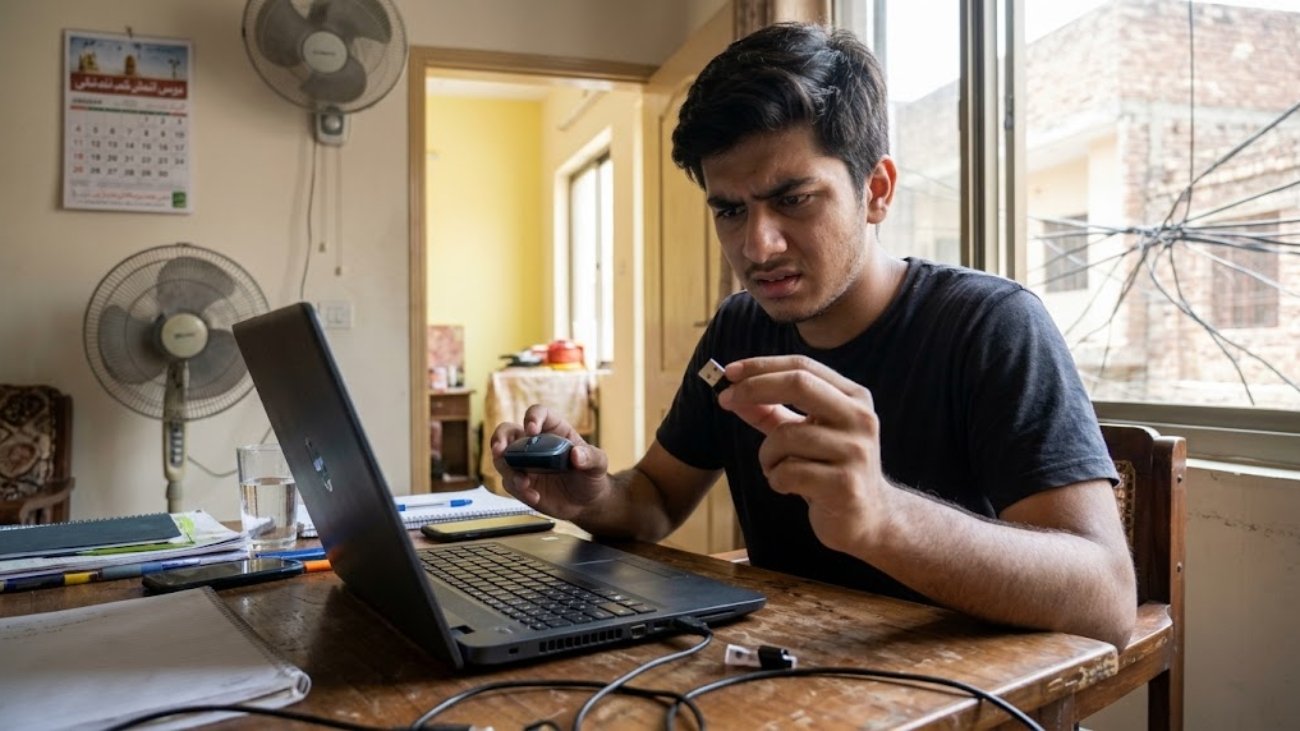
Plugging a USB receiver into a laptop that is not detecting a wireless mouse

Laptop Not Detecting Mouse or Keyboard Receiver: USB Port Fixes

If your laptop is not detecting a USB receiver, test the receiver in every port, test the port with another device, then restart. If that fails, reinstall the device in Device Manager and turn off USB power saving. Most receiver problems are fixed by one of these, and all of them are free.

Is It the Receiver, the Port or Windows?

Spend two minutes on this test before anything else.

  1. Plug the receiver into each USB port on the laptop, one at a time.
  2. Plug a flash drive or phone cable into the port that failed.
  3. If you can, try the receiver on another computer.
What you seeMost likely cause
Receiver works on another computer, not on yoursYour laptop’s port or Windows
Receiver fails on every computerThe receiver or mouse
One port fails with every deviceA dead or dirty port
Every port failsA Windows or driver problem
Works after restart, fails after sleepUSB power saving

The last row is the one most guides skip. Puget Systems explains that USB selective suspend can make ports disconnect or devices fail to wake after sleep, so Windows shows them as unrecognized. A restart usually brings them back.

Check 1: Restart Properly and Reconnect

Unplug the receiver and wait about 10 seconds. Restart Windows from the Start menu, not Shut down. Plug the receiver back in after you sign in. HelpDeskGeek lists this as the first fix.

Check 2: Plug It Directly Into the Laptop

Remove any hub, dock or extension. Logitech and Microsoft both say a receiver should be plugged directly into the computer. A cheap hub often can’t power it properly.

Check 3: Try Every Port, and Look Inside Them

Test each port. Switch the laptop off, then look into the port with a torch. Dust, lint and bent pins are common on older laptops.

A loose port can also cause trouble. If the receiver only works when you hold it at an angle, the port is worn.

Check 4: Install Windows Updates

Open Windows Update and install everything available. HelpDeskGeek suggests only installing optional driver updates that match your hardware. Restart afterward.

Check 5: Reinstall the Device in Device Manager

Press Windows + X and open Device Manager. Expand Universal Serial Bus controllers and Mice and other pointing devices. Look for a yellow warning icon or an unknown device.

Right-click it and choose Update driver. If that fails, choose Uninstall, then restart. Windows reinstalls it automatically.

Check 6: Turn Off USB Power Saving

This fixes the “works, then stops” problem. There are two parts.

Part A: Power Options

  1. Search for “Edit power plan” in the Start menu and open it.
  2. Click Change advanced power settings.
  3. Expand USB settings and set USB selective suspend to Disabled. On a laptop, set both the battery and plugged-in options.

Part B: Device Manager

  1. Expand Universal Serial Bus controllers.
  2. Right-click USB Root Hub and choose Properties.
  3. On the Power Management tab, clear “Allow the computer to turn off this device to save power.”

Logitech notes that Windows may reverse the Device Manager change after a restart or when the device is unplugged. That’s why you should do both parts. It may slightly increase power use.

Check 7: Install the Maker’s Chipset or USB Driver

If several ports fail, the chipset driver may be missing or outdated. Find your laptop’s exact model, download the chipset or USB driver from the official support site, and install it. Restart.

Check 8: Reinstall the USB Controllers (Last Resort)

Do this only if several ports fail. In Device Manager, uninstall the USB controller entries and restart so Windows reinstalls them.

Warning: if your wireless mouse is your only mouse, USB input may stop until Windows reloads the drivers. HelpDeskGeek advises having a Bluetooth keyboard or mouse ready. Learn the keyboard shortcuts first, or use the laptop’s trackpad.

When to See a Repair Shop

Stop troubleshooting if:

  • every port fails and nothing above helps
  • a port is loose or physically damaged
  • the laptop smells burnt or a port gets hot

Ask for a quote. Port repair prices vary by laptop and shop, so I haven’t listed a number.

What to Buy While You Wait

You may not want to be without a mouse. These stopgaps cost little.

StopgapPrice (PKR)
Wired mouse (A4Tech OP-620D)about 1,100-1,200
Basic wireless mouseabout 900-1,500
USB 3.0 4-port hubabout 1,600

A wired mouse needs no receiver, so it works as long as one USB port works. See our wired vs wireless mouse guide. A hub helps if you’ve run out of ports, but plug the receiver directly into the laptop, not into the hub.

My Honest Take

Most receiver problems aren’t the receiver. Do the two-minute port test first. It tells you where to look.

If the receiver works on another computer, don’t blame the mouse. Spend ten minutes on Check 6, because power saving causes more “it stops after a while” faults than people expect.

Frequently Asked Questions

Why is my laptop not detecting my USB receiver? Common causes are a dirty or loose port, a driver problem, a USB power-saving setting, or a faulty receiver. Test the receiver on another computer to tell them apart.

Why does my wireless mouse stop working after sleep? USB selective suspend can switch off a port to save power and fail to wake it. Disable it in Power Options and in the USB Root Hub’s power settings.

Can a USB hub stop a receiver from working? Yes. Logitech and Microsoft both say to plug a receiver directly into the computer, not through a hub.

Is it safe to reinstall USB controllers? Yes, but your USB mouse and keyboard may stop working briefly. Keep the trackpad or a Bluetooth device available.

How do I know if my laptop’s USB port is dead? Try a flash drive or phone cable in it. If nothing works in that port, but other ports work, the port is faulty.

Do I need a new mouse if the receiver won’t work on any computer? Often yes. Many receivers are paired to one mouse. A basic replacement costs about PKR 900-1,500.


Still stuck? Send us your laptop model and what you see on WhatsApp, and we’ll tell you whether it’s a setting or a port issue.

Student carrying a budget laptop bag under PKR 4,000 to campus in Pakistan

Best Budget Laptop Bag for Daily Use in Pakistan (Under PKR 4,000)

The best budget laptop bag under PKR 4,000 for daily use is a padded backpack, such as the Lenovo B210 at about PKR 3,699. It protects better than a sleeve or shoulder bag and spreads weight across both shoulders. If your load is light, a PKR 2,600 shoulder bag is enough.

What PKR 4,000 Actually Buys

Prices come from Pakistani retail listings in October 2026 and change often.

BagTypePrice (PKR)
Neoprene sleeve, 13″ or 14″Sleeveabout 1,599
Targus Classic 15.6″Shoulder bagabout 2,599
Waterproof messenger, 15.6″ (generic)Messengerabout 3,199
HP Original 14″Briefcase styleabout 3,199
HP Original 14″Laptop bagabout 3,699
Lenovo B210, 15.6″Backpackabout 3,699

Over PKR 4,000, you jump to bags like the Dell Pro at about PKR 4,799 and premium models from PKR 7,000. So PKR 4,000 is a real limit. Below it, a backpack is still possible.

What to Check at This Price

You can’t get everything for PKR 4,000. So check these in order.

  1. A padded laptop compartment. Samsonite’s guide says the compartment should be padded on the front and back, and close securely. A suspended sleeve that holds the laptop above the base reduces impact.
  2. Fit. A loose compartment lets the laptop slide. Solo says a dedicated compartment stops shifting, which helps prevent cracks and scratches. Our bag size guide shows how to match it.
  3. Zips and seams. Samsonite notes that zippers and seams affect real-world water resistance as much as the fabric label. Covered zips help in a short walk in the rain.
  4. Comfort. Solo recommends trying the bag with a loaded laptop. A good amount of padding on the straps spreads the load.
  5. Water resistance. Samsonite says water resistant means light rain and splashes. Waterproof means prolonged exposure. At this price, expect resistant at best.

Notice what’s not on the list: logos, extra pockets and colours.

Which Bag Type Is Right?

  • You carry books, a charger and a laptop every day → Backpack. Weight sits on both shoulders.
  • Your load is light and you walk or drive → Shoulder bag. Easier to grab, and cheaper.
  • You ride in rain or monsoon → Look for a water-resistant backpack or messenger. Add a rain cover if you can.
  • You only move the laptop between a few rooms → A sleeve at PKR 1,599 is enough. See our backpack vs sleeve guide for why a sleeve alone isn’t enough for a bike commute.
  • You’re a student with a heavy load → Backpack, always.

The Daily-Use Test Before You Pay

Do this at the shop or when the bag arrives.

  1. Put your actual laptop in the compartment. Does it fit snugly?
  2. Add your charger, a notebook and a water bottle.
  3. Wear it for five minutes. Do the straps dig in?
  4. Zip it fully. Do the zips close easily?

If the bag fails any of these, return it. Online, ask the seller about the return window before you order.

What It Costs Per Day

A PKR 3,699 backpack used on about 250 days a year for two years comes to roughly PKR 7 a day. That’s an estimate, not a guarantee. A bag that fails in three months costs far more per day, which is why a branded model with a named size is a safer buy than the cheapest unnamed one.

Mistakes to Avoid

  • Buying a bag that’s too big. A big compartment lets a small laptop bounce.
  • Choosing by looks. A stylish bag with a thin laptop compartment gives little protection.
  • Ignoring the size. One listing may say “15.6 inch” and another says “16 inch” for the same bag. Check the internal dimensions.
  • Skipping the return policy. Online, a wrong-size bag costs you delivery fees.

My Honest Take

For daily use, I’d buy the backpack. It’s the best protection per rupee under PKR 4,000, and it’s easier on your shoulders than a shoulder bag.

Don’t pay extra for “waterproof” at this price. Pay for a padded compartment and good zips instead. They matter more.

Frequently Asked Questions

What is the best laptop bag under PKR 4,000 in Pakistan? A padded backpack like the Lenovo B210 (about PKR 3,699) is the best all-round choice for daily use. A shoulder bag around PKR 2,600 suits lighter loads.

Is a backpack better than a shoulder bag for a laptop? For daily use, yes. A backpack spreads weight across both shoulders and usually has a better padded compartment.

Is a waterproof laptop bag worth it under PKR 4,000? Usually not. Most bags at this price are water resistant, which handles light rain. Choose good zips and padding instead.

What laptop size fits a 15.6 inch bag? A 15.6″ laptop fits, but check the internal compartment width and depth. Some laptops are wider than their screen size suggests.

How long does a budget laptop bag last? It depends on use and build. A branded bag with strong zips and stitching usually lasts longer than an unnamed one. Check the return window.

Can I buy a laptop bag with cash on delivery in Gujranwala? Yes. TechBits.Online delivers across Gujranwala and nearby cities with COD available.


Not sure which bag fits your laptop and load? Send your laptop model and budget on WhatsApp, and we’ll suggest one.

Checking why a wireless mouse is not working by testing the USB receiver

Wireless Mouse Not Working: Receiver, Battery and Driver Checks

If your wireless mouse is not working, check in this order: fresh battery, the mouse’s power switch, the receiver in a different USB port, then the mouse on another computer. If it still fails, check the driver in Device Manager and re-pair it. A basic replacement costs about PKR 900-1,500, so don’t spend more than that on a fix.

First: What Is the Cursor Doing?

Look at what the mouse does, because it points to the cause.

  • Completely dead: battery, power switch, or receiver. Start at Check 1.
  • Jumpy, laggy or cutting out: weak battery or interference. Check 1 and Check 4.
  • Works on one computer, not another: the receiver or the laptop port. Check 3 and Check 5.

Check 1: Replace the Battery

Logitech’s guide lists this first. Low batteries can break the connection. Fit a fresh one and check it points the right way.

Don’t use an old battery from a drawer. Cheap or old batteries can look fine and still be too weak. If your mouse is rechargeable, charge it for a while first.

Check 2: Turn the Mouse Off and On

Flip the power switch on the underside, wait a few seconds, then turn it on. Logitech also suggests turning the computer on first, then the mouse.

Check 3: Plug the Receiver Directly Into a Different Port

Logitech says the receiver must be plugged directly into your computer. That means no USB hub or extension. Microsoft’s advice is the same: plug it directly into a port on the PC, not through a hub.

Now move it to another port. Ports on the same laptop can behave differently, and a loose or dusty port is common on older laptops.

Check 4: Reduce Interference

Logitech recommends keeping the mouse off metal surfaces and close to the receiver. It also suggests keeping electrical devices like speakers, power supplies, monitors and phones at least 20 cm (8 inches) away from the receiver.

If your receiver sits behind a monitor or next to a phone charger, move it. Use a short USB extension cable to bring it closer if your laptop’s port is at the back.

Check 5: Test on Another Computer

This is the check that decides what’s broken. Microsoft’s guide suggests testing the receiver on another PC.

  • Works on the other computer: the mouse and receiver are fine. The problem is your laptop’s port or settings.
  • Fails on both: the mouse or the receiver is faulty.

Check 6: Look at the Driver

In Windows, press Windows + X and open Device Manager. Look under Mice and other pointing devices, or Human Interface Devices. If you see a yellow warning icon, right-click it and choose Update driver or Uninstall. Then restart the computer. Windows reinstalls it.

You can also open your laptop’s power settings and check that USB devices aren’t being switched off to save power.

Check 7: Re-Pair the Mouse

Some receivers are paired to one mouse. ASUS notes that its devices only work with the currently paired receiver. Logitech has its own pairing utilities for its receivers.

For A4Tech and most budget brands, the pairing steps are model-specific. Check the manual in the box. If you don’t have it, search the model number.

Should You Fix It or Replace It?

Do the maths before you spend more time.

SituationWhat to do
Battery or port issueFixed for free
Receiver lostAsk if a spare receiver is sold for your model. Often a new mouse is cheaper
Mouse dead on every computerReplace
Cursor jumps even with a fresh batteryTry a different surface, then replace

A basic wireless mouse costs about PKR 900-1,500. A mid-range silent-click model runs about PKR 1,950-2,100. A wired mouse like the A4Tech OP-620D is about PKR 1,100-1,200 and needs no battery or receiver. See our wired vs wireless mouse guide if you’re thinking of switching.

How to Avoid This Next Time

  • Store the receiver inside the mouse when you carry it.
  • Keep a spare battery in your bag.
  • Plug the receiver directly into the laptop, not into a hub.
  • Switch the mouse off when you travel, so the battery lasts.
  • Buy a branded model with a clear model number so replacements are easy to find. Our A4Tech wireless mouse price guide lists current options.

My Honest Take

Most of the time, it’s a battery or a receiver in the wrong port. Do Checks 1 to 3 before anything else. They take two minutes.

If the mouse is cheap and the receiver is lost, don’t waste an afternoon on it. A new basic mouse costs about the same as a few hours of your time.

Frequently Asked Questions

Why is my wireless mouse not working? The most common causes are a weak battery, a receiver in a bad USB port, interference, or a driver problem. Start with a fresh battery and a different port.

How do I know if the mouse or the receiver is faulty? Test them on another computer. If it works there, your laptop is the problem. If it fails on both, the mouse or receiver is faulty.

Can I use a wireless mouse with a different receiver? Often no. Many receivers are paired to one mouse. Check the manual, or ask the seller whether a spare receiver exists for your model.

Why does my wireless mouse keep disconnecting? Usually a low battery, interference from nearby electronics, or a loose USB port. Move the receiver closer and use fresh batteries.

Should I use a USB hub for the receiver? No. Logitech and Microsoft both say to plug the receiver directly into the computer.

How much does a new wireless mouse cost in Pakistan? A basic one is about PKR 900-1,500. A silent-click mid-range model is about PKR 1,950-2,100.


Mouse still not working after these checks? Message us on WhatsApp with the model and what happens, and we’ll tell you if it’s worth fixing.